
Overview
Agentic coding apps come in two shapes, and each fails the same job a different way.
Terminal-first tools — Warp, Superset, Conductor — grew out of the terminal to orchestrate parallel agents. To do it they bolt on a file explorer, a diff/file editor, an in-app browser. Each of those surfaces is a half-baked version of a dedicated app, and worse, it eats the terminal real estate I opened the tool for in the first place.
Editor-first tools — VSCode and its forks, Cursor and Windsurf among them — invert it. The editor is excellent and owns the window; the terminal is a second-class citizen stuck in a bottom panel, and the whole thing is tab hell. The agent lives inside the editor's worldview.
Different problems, same root cause: a monolith decided it should own every surface, so every surface except its favorite is mediocre. I don't want a bundled file manager or a bundled terminal. I want the best terminal, the best file manager, and the best editor — each doing the one job it was built for — assembled on demand.
This recipe is one keybinding that does that: press Ctrl+Alt+T, get a terminal and a file manager tiled 75/25 on whichever monitor my mouse is on. The editor stays a separate first-class app I open when I mean to edit, not a panel I'm forced to live inside.
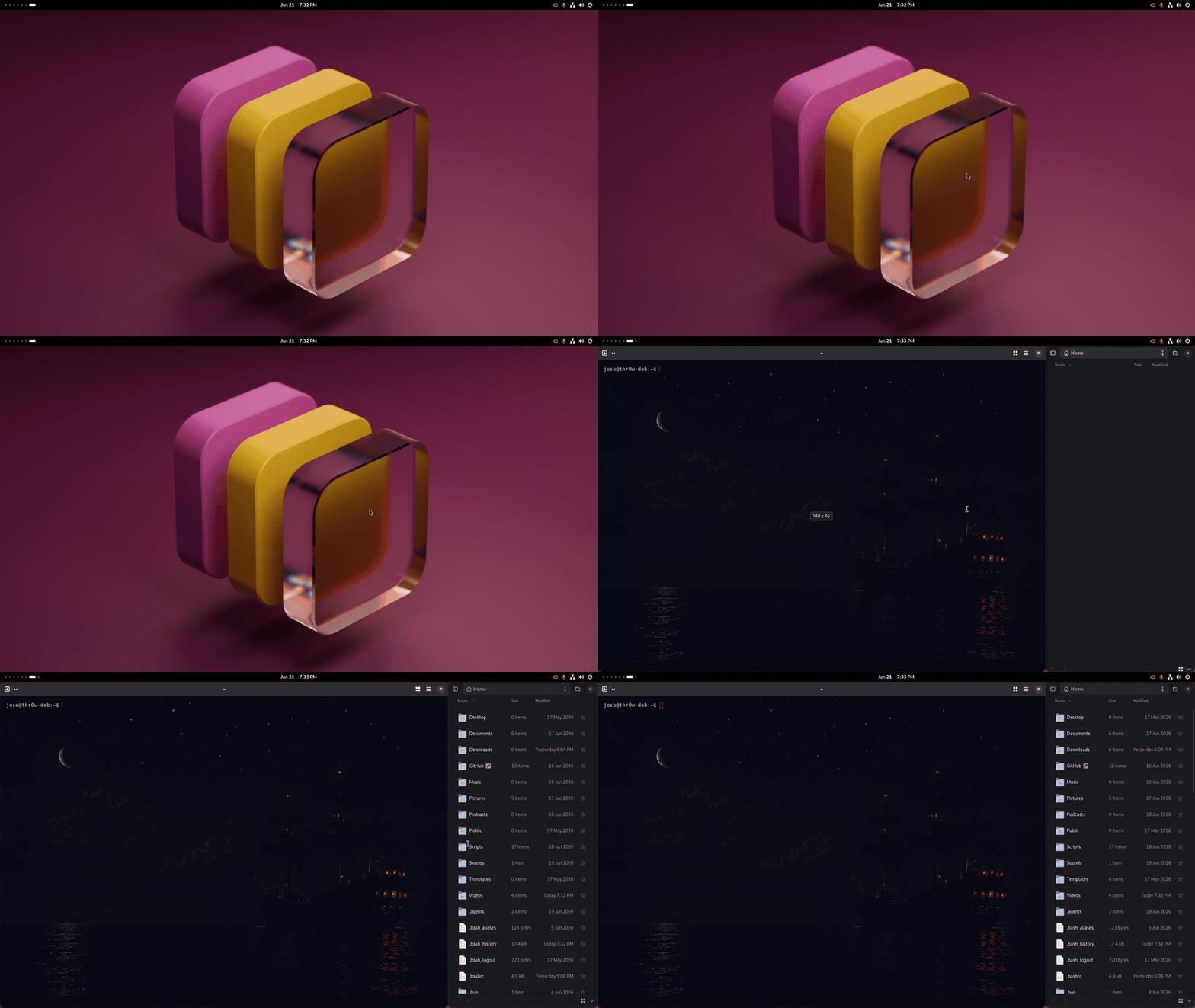
The catch that makes it interesting: under Wayland/GNOME, an application is not allowed to position its own window. No --geometry, no "open me here." So the recipe is really two parts — a launcher that captures where I am, and a separate daemon that does the placement once the windows appear.
Prerequisites
- GNOME on X11 or XWayland (the placement tool speaks X11/libwnck)
- Ghostty and Nautilus (GNOME Files) — swap in any terminal/file manager
xdotoolandxrandrfor cursor + monitor geometrydevilspie2for window placement
bashsudo apt install devilspie2 xdotool x11-xserver-utils
The problem: clients can't place their own windows
On X11 you could launch a terminal with a geometry flag and be done. Wayland deliberately removed that — clients don't know their own screen coordinates and can't set them. The compositor decides.
devilspie2 sidesteps it by acting as a window-manager helper through libwnck: it watches for windows mapping and applies rules to them after the fact. That's the only half that can move a window. But it runs as a persistent daemon — it has no idea where my cursor was when I pressed the key. So the intent (which monitor) has to be handed across from the launcher.
The bridge is a temp file.
Part 1 — the launcher
~/.local/bin/term-and-files figures out which monitor the cursor is on, writes that monitor's full geometry to a temp file, then spawns both apps:
bash#!/usr/bin/env bash
set -e

eval "$(xdotool getmouselocation --shell 2>/dev/null)"   # sets X= Y=

# default to a 1080p primary; overwrite if the cursor lands on a known monitor
MON_GEOM="0 0 1920 1080"
while IFS=' ' read -r _conn _rest; do
  if [[ "$_rest" =~ ([0-9]+)x([0-9]+)\+([0-9]+)\+([0-9]+) ]]; then
    _w="${BASH_REMATCH[1]}"
    _h="${BASH_REMATCH[2]}"
    _x="${BASH_REMATCH[3]}" _y="${BASH_REMATCH[4]}"
    if (( X >= _x && X < _x + _w && Y >= _y && Y < _y + _h )); then
      MON_GEOM="$_x $_y $_w $_h"; break
    fi
  fi
done < <(xrandr --current 2>/dev/null | grep -w connected)

echo "$MON_GEOM" > /tmp/term-and-files-mon   # x y w h — the bridge
ghostty &>/dev/null &
nautilus --new-window &>/dev/null &
It parses xrandr's WIDTHxHEIGHT+X+Y geometry for each connected output, finds the one containing the cursor, and writes x y w h. Writing the full rectangle — not just the X offset — is what lets the placement rule adapt to any resolution instead of hardcoding 1920×1080.
Part 2 — the placement daemon
~/.config/devilspie2/term-and-files.lua reads the geometry back and tiles whatever maps next: terminal left 75%, files right 25%.
lualocal flag = "/tmp/term-and-files-mon"
local f = io.open(flag, "r")
if not f then return end
local line = f:read("*l") or ""
f:close()

-- producer writes "x y w h"; fall back to 1080p single-monitor defaults
local mon_x, mon_y, mon_w, mon_h = line:match("(%-?%d+)%s+(%-?%d+)%s+(%d+)%s+(%d+)")
mon_x = tonumber(mon_x) or 0
mon_y = tonumber(mon_y) or 0
mon_w = tonumber(mon_w) or 1920
mon_h = tonumber(mon_h) or 1080

local PANEL_H = 32                 -- GNOME top bar height
local APP_Y   = mon_y + PANEL_H
local AVAIL_H = mon_h - PANEL_H
local LEFT_W  = math.floor(mon_w * 0.75)
local RIGHT_W = mon_w - LEFT_W

local name = get_application_name()
if name == "com.mitchellh.ghostty" then
  set_window_geometry(mon_x, APP_Y, LEFT_W, AVAIL_H)
elseif name == "org.gnome.Nautilus" then
  set_window_geometry(mon_x + LEFT_W, APP_Y, RIGHT_W, AVAIL_H)
end
The split (LEFT_W, AVAIL_H) is now derived from the real monitor, so the same rule works on a 4K panel or a vertical secondary. The one value that can't come from xrandr is PANEL_H — the GNOME top bar's reserved strut, not a screen dimension — so it stays a constant.
Match
get_application_name()to your apps. Find the exact string withxprop WM_CLASS(then click a window) if yours differ.
Bind it to a key
GNOME custom shortcut, all from the CLI:
bashKEY=org.gnome.settings-daemon.plugins.media-keys
PATH0=/org/gnome/settings-daemon/plugins/media-keys/custom-keybindings/custom0/

gsettings set $KEY custom-keybindings "['$PATH0']"
gsettings set ${KEY}.custom-keybinding:$PATH0 name 'Terminal + Files'
gsettings set ${KEY}.custom-keybinding:$PATH0 command "$HOME/.local/bin/term-and-files"
gsettings set ${KEY}.custom-keybinding:$PATH0 binding '<Primary><Alt>t'
If you already have custom shortcuts, append
custom0to the existingcustom-keybindingslist instead of overwriting it, and bump the index (custom1,custom2, …) so you don't clobber one.
Autostart the daemon
devilspie2 must be running for placement to happen. Without it the launcher still opens both apps — they just land wherever GNOME drops them, with no error pointing at the cause. Autostart it:
bashmkdir -p ~/.config/autostart
cat > ~/.config/autostart/devilspie2.desktop <<'EOF'
[Desktop Entry]
Type=Application
Name=devilspie2
Exec=devilspie2
X-GNOME-Autostart-enabled=true
EOF
Log out and back in, or just run devilspie2 & once for the current session. From now on Ctrl+Alt+T gives you a tiled workspace on the monitor you're looking at.
Trade-offs
Producer/consumer coupling is invisible
Nothing in the launcher says it depends on devilspie2. Kill the daemon and tiling silently stops — the windows still open, just unplaced. That's the price of splitting capture from placement; document the dependency where future-you will look.
A race on rapid fire
The temp file is global. Fire the keybinding twice on two monitors fast enough and the second press's geometry can be applied to the first press's windows. For a one-human-one-keypress workflow it never surfaces; under automation it would.
X11-bound
devilspie2 needs X11 or XWayland. On a pure-Wayland session with no XWayland in the loop it can't place windows at all — this whole approach assumes an X server is reachable.
Why bother
Because the alternative is accepting whichever surface your monolith does badly: the bolted-on file explorer of a terminal-first agent runner, or the second-class terminal of an editor-first IDE. One keypress, three first-class tools, each doing its one job. The keybinding is just the assembler.